
This feature allows you to control access to sensitive information entered in the fields of a process instance.
When enabled, you can define which user roles are authorized to view the information entered in a specific field. Users who do not belong to the authorized roles can still access the work item, if their permissions allow it, but the information in the selected field will be masked.
This option is useful for protecting confidential data, such as personal, financial, HR, legal, or any other information that should only be visible to specific profiles.
When should you use this feature?
Use field permissions when some users need to participate in a process without having access to all the information in the instance.
For example:
- a manager can follow a request without viewing certain confidential data;
- an operational team can process an activity without accessing sensitive HR information;
- a user can view a task or dashboard without seeing fields reserved for a specific role.
This feature allows you to apply more granular control than the general permissions for accessing the process or work item.
Enabling field permissions
Before configuring authorized roles for a field, the feature must be enabled in the environment.
To enable it:
- Go to the Manage environment menu.
- Open the Business Process Automation extension.
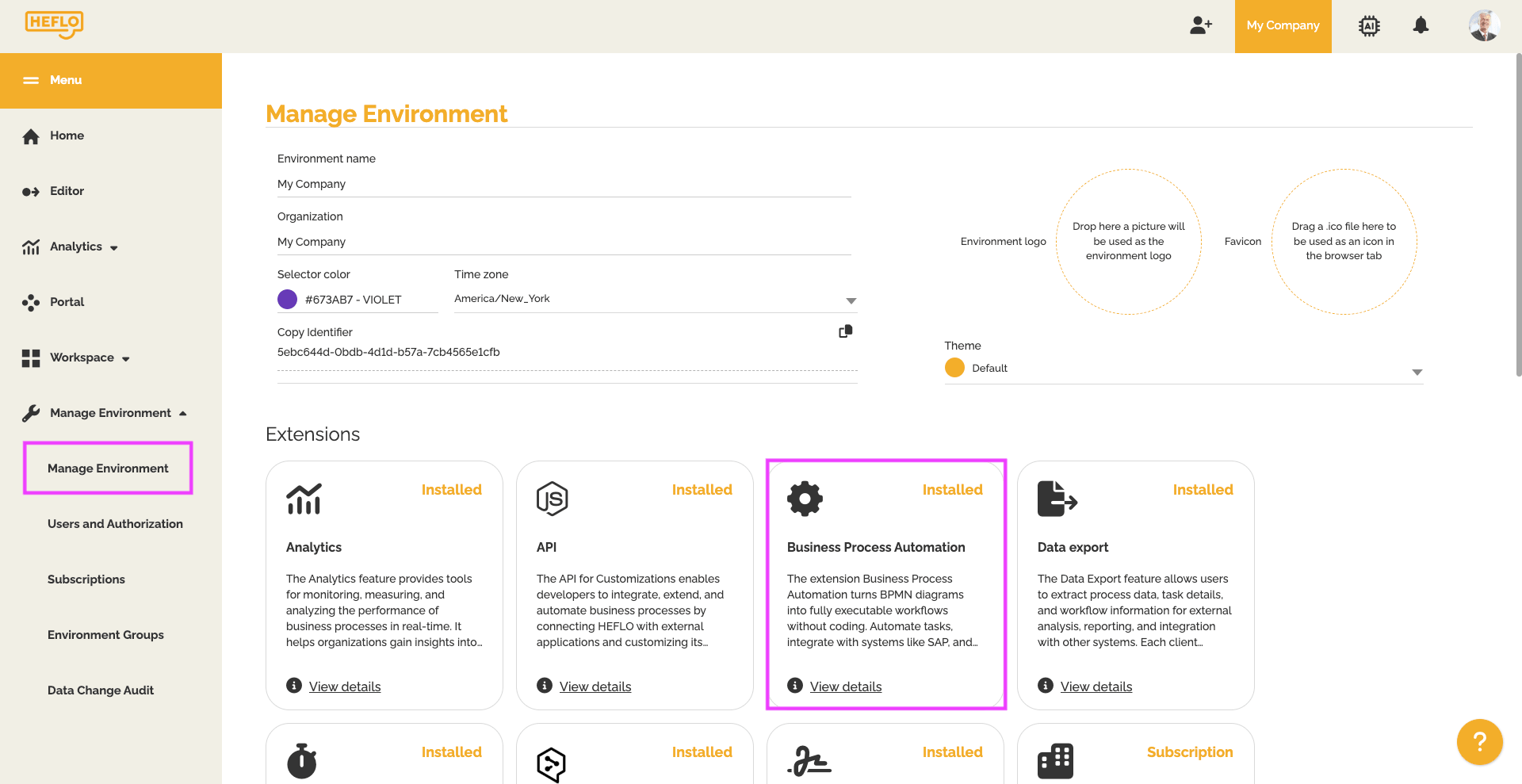
- Enable the Field-level authorization option.
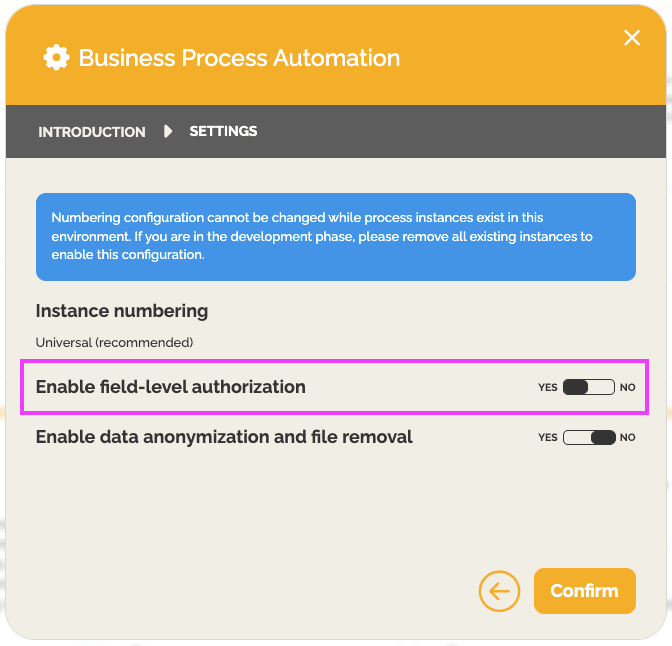
Once this option is enabled, a new setting becomes available in the field configuration.
Defining authorized roles for a field
After enabling the feature, you can configure authorized roles directly from the field editor.
To configure access to a sensitive field:
- Go to the form or the field list.
- Select the field you want to configure.
- Open the field editing options.
- In the Authorized roles setting, select the user roles that will be allowed to view the information.
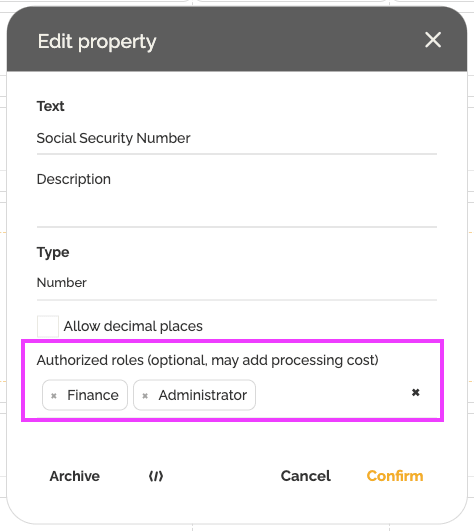
- Save the configuration.
Only users associated with the selected roles will be able to see the value entered in this field.
To learn more about user roles: Roles on HEFLO.
What happens if no role is selected?
If the Authorized roles setting is left empty, no specific restriction is applied to the field.
In this case, all users who have access to the work item can view the field information, according to their usual permissions.
To mask sensitive information, you must explicitly select the roles authorized to view it.
What unauthorized users see
When a user accesses a process instance without belonging to one of the authorized roles, the field value is masked.
Instead of the information, HEFLO displays a lock icon indicating that the field content is protected.
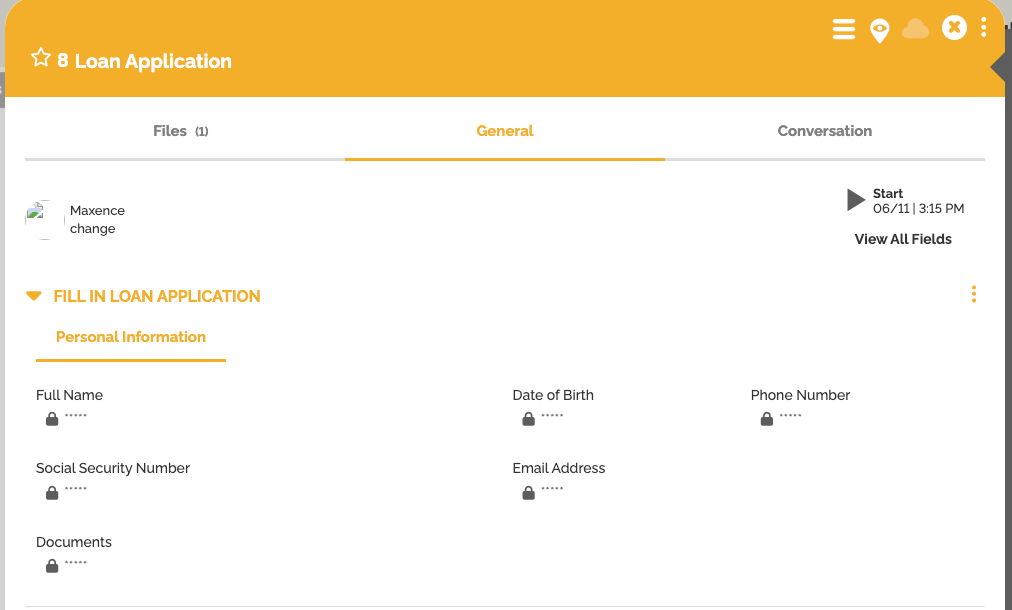
This restriction also applies when the field is displayed in other consultation areas, such as the task list or dashboards.

This ensures that the information remains protected even when it is displayed outside the work item form.
Using this feature with records
Field permissions can be configured on fields linked to records, whether they are native to the environment or created by users.

However, native fields from native records are not compatible with this feature. In this case, the role-based restriction option will not be available for those fields.
To learn more about records: How to create a record.
Best practices
To use this feature effectively:
- identify the fields that actually contain sensitive information;
- limit access only to the roles that need to view this data;
- combine this feature with the general process permissions to strengthen data security.
This feature does not replace the global management of process access permissions, but it adds a more precise level of control over the information displayed in instances.
Result
Once configured, field permissions allow you to protect sensitive information while still letting users participate in the process according to their role.
Authorized users can view the field information normally, while other users only see an indication that the content is protected.
This approach gives you better control over the visibility of sensitive data in process instances, task lists, and dashboards.