
A new feature has been added to the HEFLO platform, offering greater control and security in the submission of documents within business processes. It is now possible to define both the maximum number of files and the allowed file types in form fields of the File type.
This improvement increases accuracy in document collection, reduces submission errors, and ensures that users send only what is truly necessary for the process flow.
With the new functionality, administrators and process designers now have advanced control over submissions, ensuring:
- Precise limitation of the number of accepted files
- Clear restrictions on valid file formats
- Prevention of improper attachments
- Reduction of submission failures and internal handling issues
Configuration
Configuration is simple and can be done directly in the process editor.
Steps to configure:
- Access the process editor and create or open an existing workflow.
- Add a form to the process.
- Inside the form, add an existing File-type field, or click New Field and select File Field.
- In the upper-right corner of the created field, click the pencil icon (edit).
When the editing window opens, two new configuration options will be available:
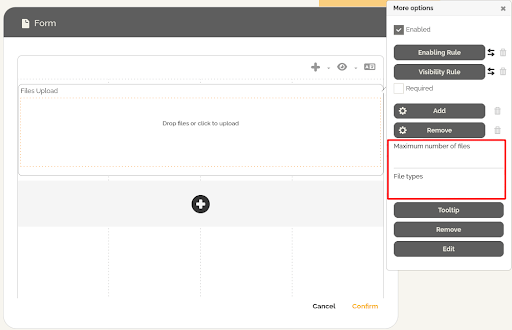
1. Maximum Number of Files
Allows you to define how many files can be uploaded through that field.
Examples of configuration:
- 1 (for single documents)
- 2 (for complementary attachments)
- 3 or more (depending on the process)
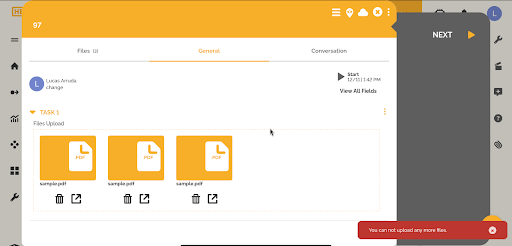
If the user attempts to submit more files than the allowed limit, they receive a warning message and the extra upload is blocked.
2. Allowed File Types
Defines which file formats will be accepted by the form.
You can specify extensions such as:
- doc
- png
- jpg
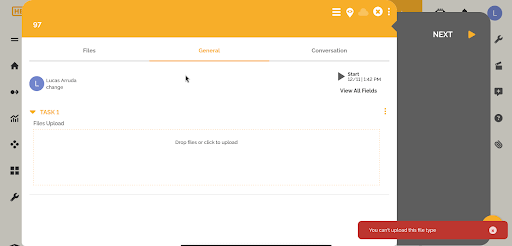
When the user tries to upload a file outside the allowed list (for example, a .txt), the system blocks it and displays the message: “This file type is not allowed.”
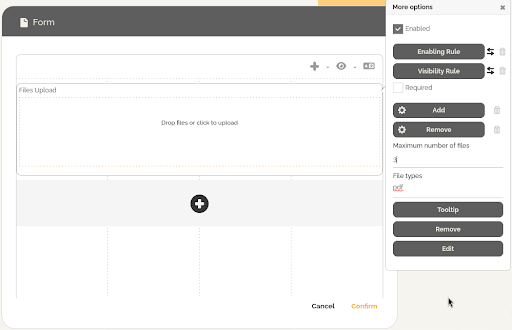
A typical configuration example is shown in the following image.
During execution of a process instance:
- The system filters based on the allowed file types. The user may attempt to select “All Files,” but incompatible files are rejected.


- When the maximum file limit is reached, the system prevents additional uploads.
It is important to mention that:
- These restrictions apply only to the configured form field.
- The Files tab of the process still allows additional uploads, but these cannot be linked to the restricted field, preserving the integrity of the defined rule.
To learn more about how to disable the file tab of a work item: How to hide actions in a process execution with custom roles?
This new functionality simplifies process automation, ensuring that users submit only the correct files, in the expected format and quantity.