
The HEFLO platform has received a new feature that significantly increases efficiency and automation in data management: the cloning of custom records.
With this feature, administrators and process users who work with custom records can create new entries much faster, using existing data as a base — without needing to manually type all fields.
This reduces errors, speeds up registrations, and standardizes information, especially in complex records containing multiple properties or internal dependencies.
Custom Records
Custom records function as internal data structures that store reusable information within business processes, such as:
- Products
- Orders
- Contracts
To learn more about custom records: How to create a record.
The new cloning feature adds agility to these use cases by allowing users to:
- Quickly create a new record based on an existing one
- Reduce rework when filling out fields
- Apply consistent templates in processes with large data volumes
With the cloning functionality, a user can select an existing product, create a new instance, and automatically keep the fields identical to the model—changing only what is necessary. This is especially useful when records have:
- Many required fields
- Hierarchical structures
- Internal sublists
- Data that must follow a specific pattern
Usage Modes
Cloning can be used in two main contexts:
- Directly on Custom Record pages
- Inside BPMN Processes through record-type fields
1. Cloning Directly on the Record Page
This mode allows administrators to duplicate records within the platform’s own record list.
Step-by-step:
- Access the custom records page.
- It can be created through the top menu (book icon).
- Or accessed from the workspace if it already exists.
- Enter edit mode by clicking the pencil icon at the top of the page.
- Hover over the desired record and click the pencil icon to edit its configuration.
- At the bottom of the configuration page, the new option will appear:
✔ Enable Cloning
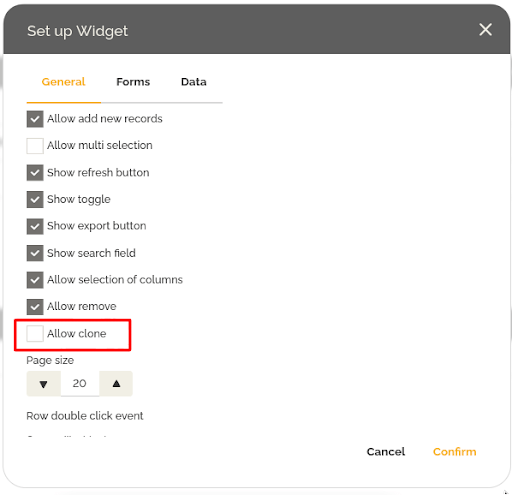
- When enabled, a second item appears:
✔ Deep Cloning
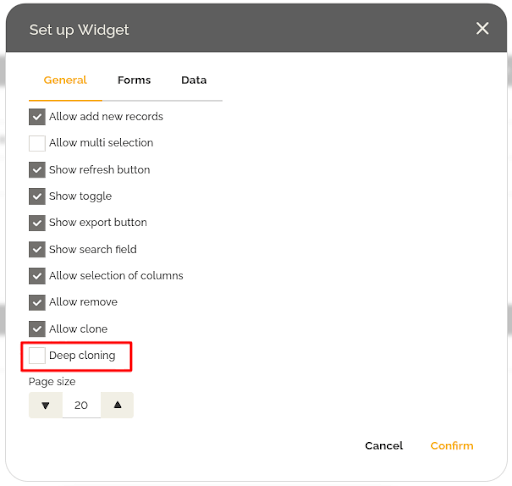
Note: The deep cloning feature allows the cloning of records that have internal lists or hierarchically related records. This behavior is optional and configurable. - After enabling cloning, click Confirm.
When activated, a new Clone icon appears to the right of each record line.

When you click it:
- A pop-up displays all information from the original record.
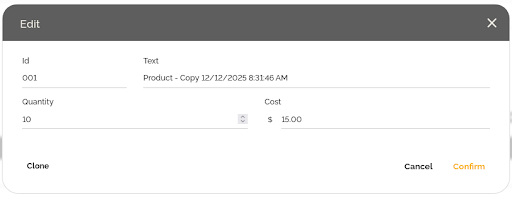
- The user can then:
- Create an identical copy
Note: The cloned record will display “Copy” followed by the date in its textual representation field. This only applies if the textual representation is made from a single field. - Or use the record as a template, changing only what is necessary
- Create an identical copy
Simply confirm to create the new record or click the Clone option on the left side to generate an additional copy.
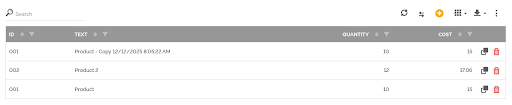
This allows registering items quickly and consistently.
2. Cloning Inside Processes
Cloning can also be used within a BPMN process when working with Record fields in forms.
Process Configuration:
- Open the process editor.
- Add a form.
- Insert a Related Record field.
- Click the pencil icon on the field to edit.
- Enable the option:
✔ Allow Creation - After enabling, a new option appears:
✔ Allow Cloning

Here, you can also enable deep cloning if necessary.
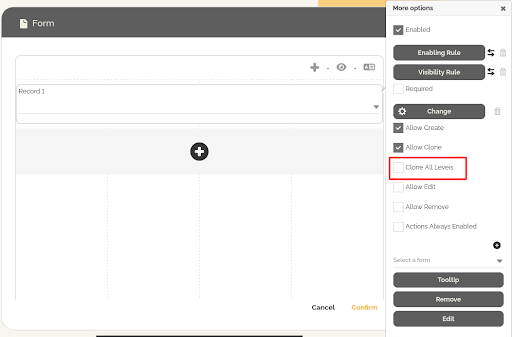
7. Click Confirm to save the settings.
When running a process instance, the record field will display a “+” icon. Unlike the configuration without cloning enabled, when clicking it the system will open a wizard asking whether you want to:

- Create a new record from scratch
- Select an existing record as a template
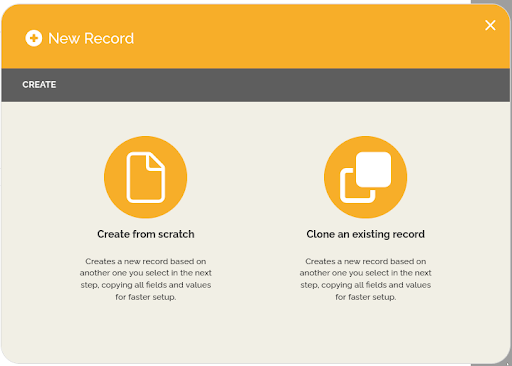
When choosing a template, all the original data is loaded for editing and reuse.
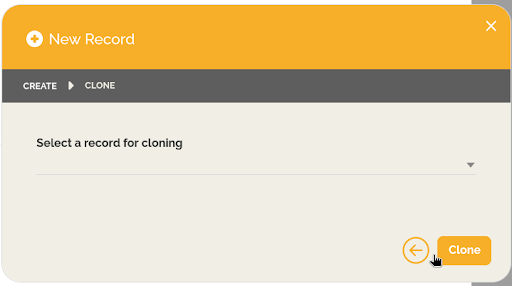
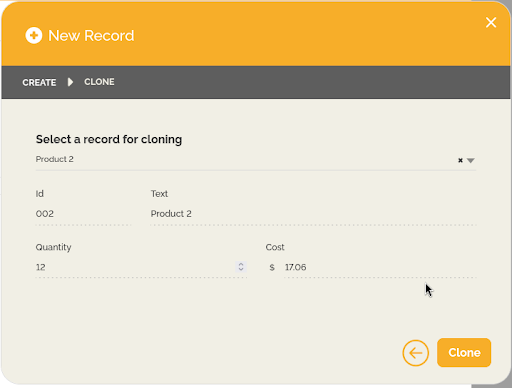
This feature is ideal for processes that require multiple similar record creations during execution.
Important Note
If the record has a field configured as a key identifier, direct cloning may not be possible. In this case, the record can only be used as a template and the user must define a new identifier.
Best Practices
- Use cloning for records with many repetitive fields.
- Avoid allowing unrestricted cloning for all users.
- Document which records contain unique identifiers.
- Test deep cloning in structures with internal lists before deploying to production.
Conclusion
The Custom Record Cloning feature in HEFLO enhances operational efficiency by:
- Reducing rework
- Speeding up registrations
- Minimizing input errors
- Ensuring consistency between similar records
- Providing an intuitive template-based creation flow
Whether used directly on record pages or within BPMN processes, the feature makes the daily work of administrators and executors much more agile and standardized.