
During the execution of a process instance with parallel paths or ad hoc activities, multiple sub-instances (sub-tokens) may be created. For users, this can become complex and difficult to keep track of. With this in mind, HEFLO redesigned the Related Tasks section to improve navigation and clearly identify responsibilities.
HEFLO allows users to:
- View all sub-instances linked to a main process instance in an organized way
- Filter tasks by responsibility or status
- Easily navigate between the parent instance and its sub-instances
- Identify the exact position of a task within the process map
In this article, we explain how to access, manage, and keep track of these sub-instances.
1. When Are Sub-Instances Created? How to Identify Them?
Sub-instances are created when:
- The process splits into multiple parallel paths
- An ad hoc activity is created
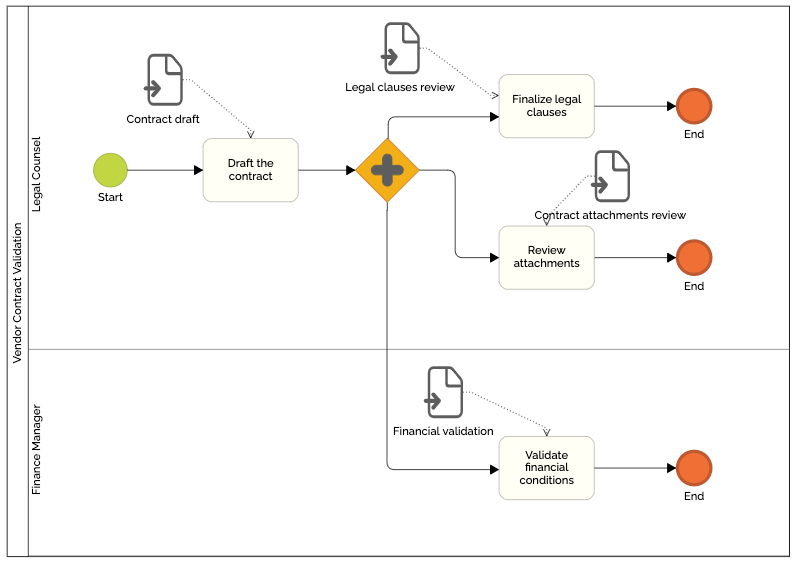
For example, if a process branches into three parallel paths, each path generates a sub-token linked to the same main process instance.
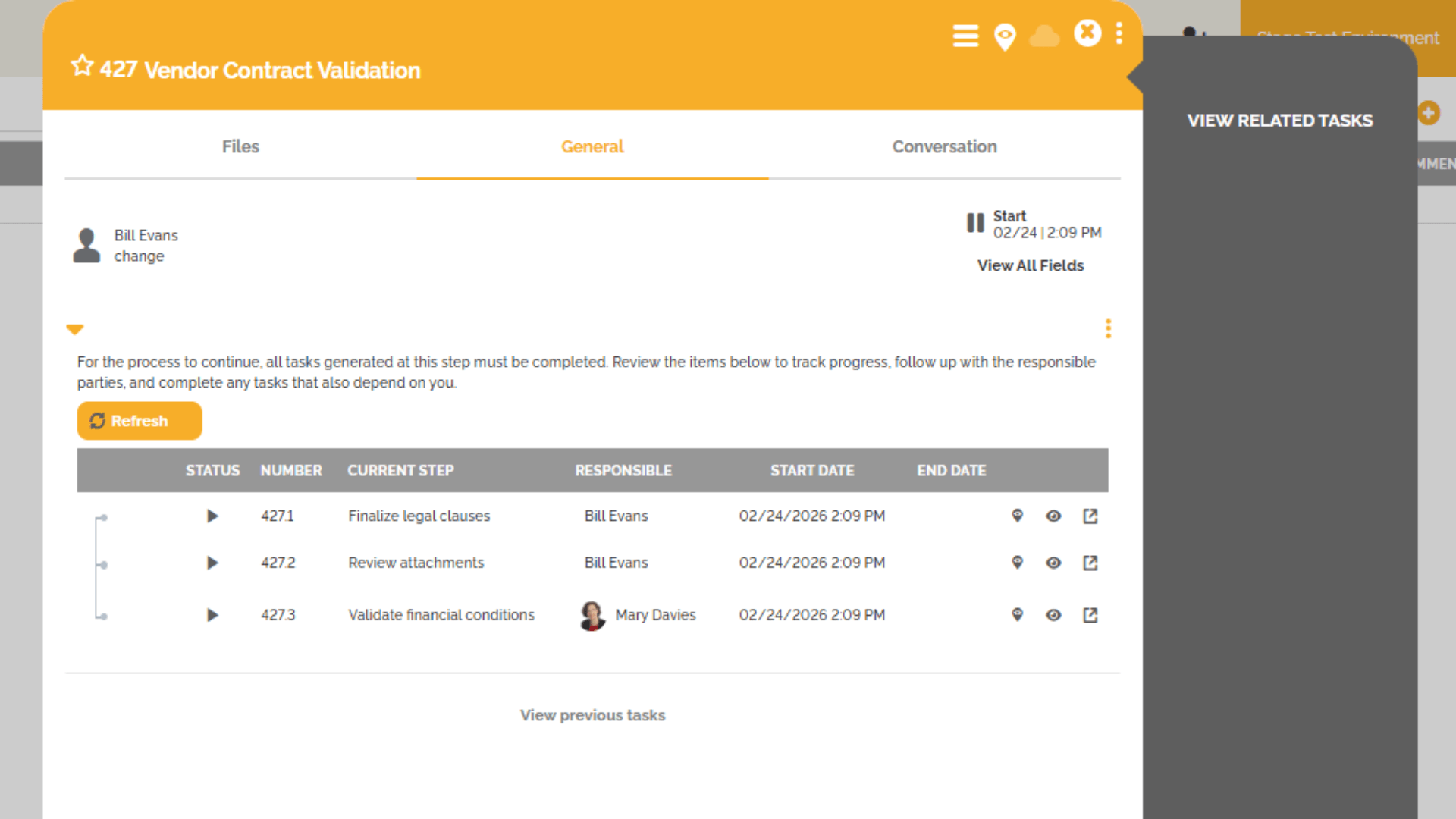
Each sub-instance is identified by the suffix “.x” appended to the main instance number. For example, if the main instance is 1, and three parallel tasks are generated, they will be identified as 1.1, 1.2, and 1.3, respectively.
2. Accessing the Related Tasks Menu
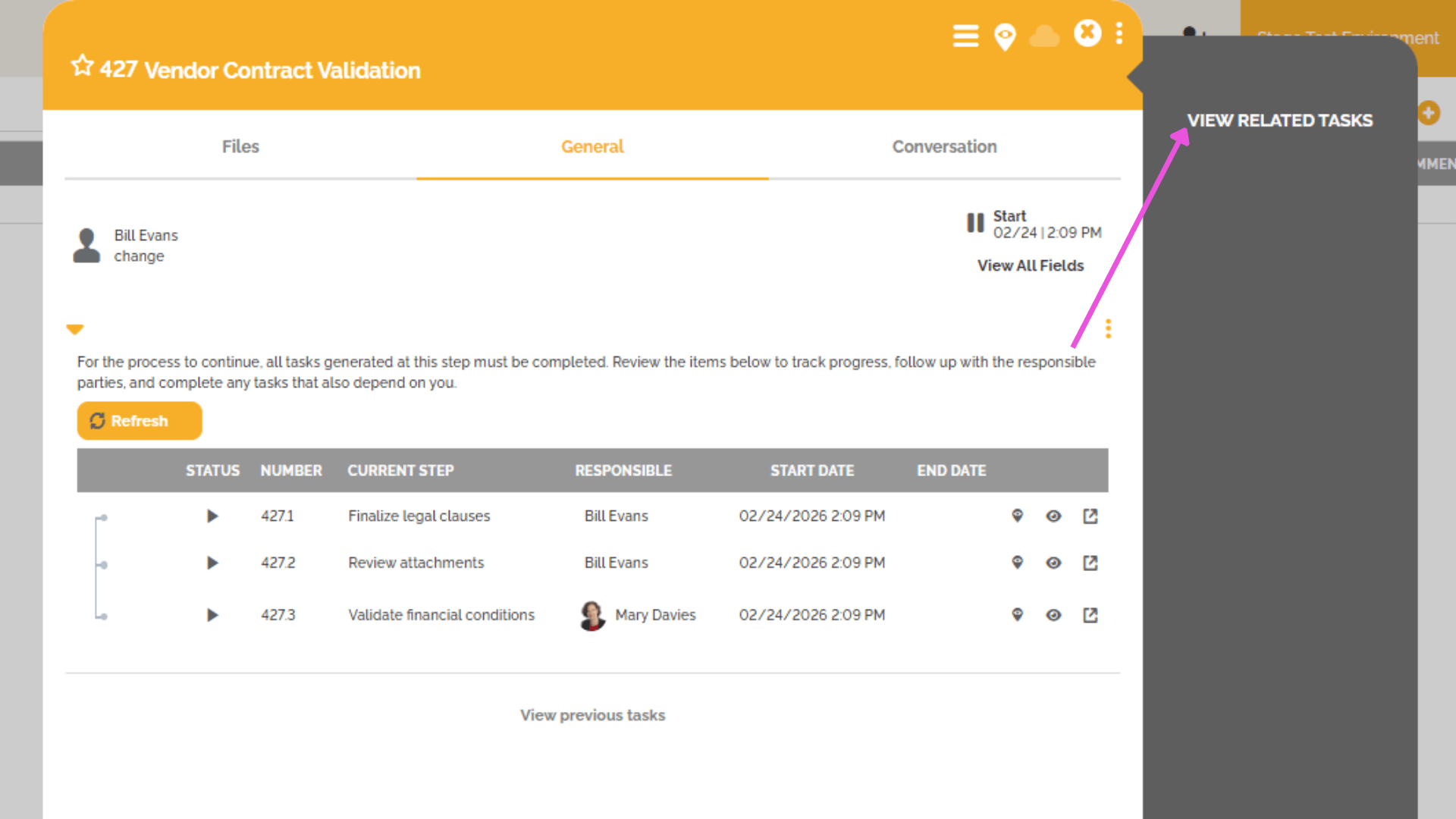
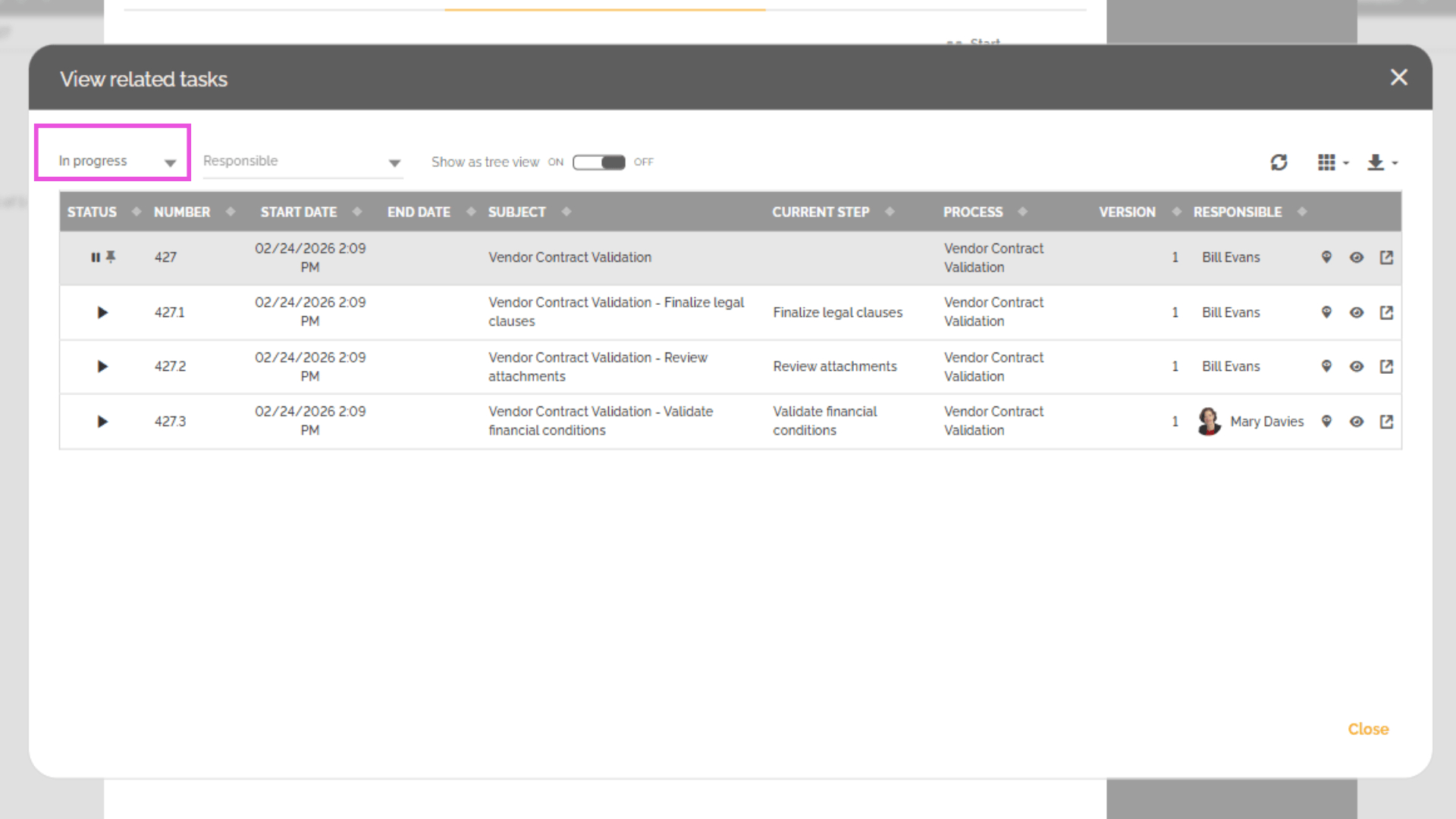
When a process instance reaches a step that generates multiple tasks, a new option appears on the right side of the instance window: “View Related Tasks.” To access the Related Tasks menu:
- Click “View Related Tasks”
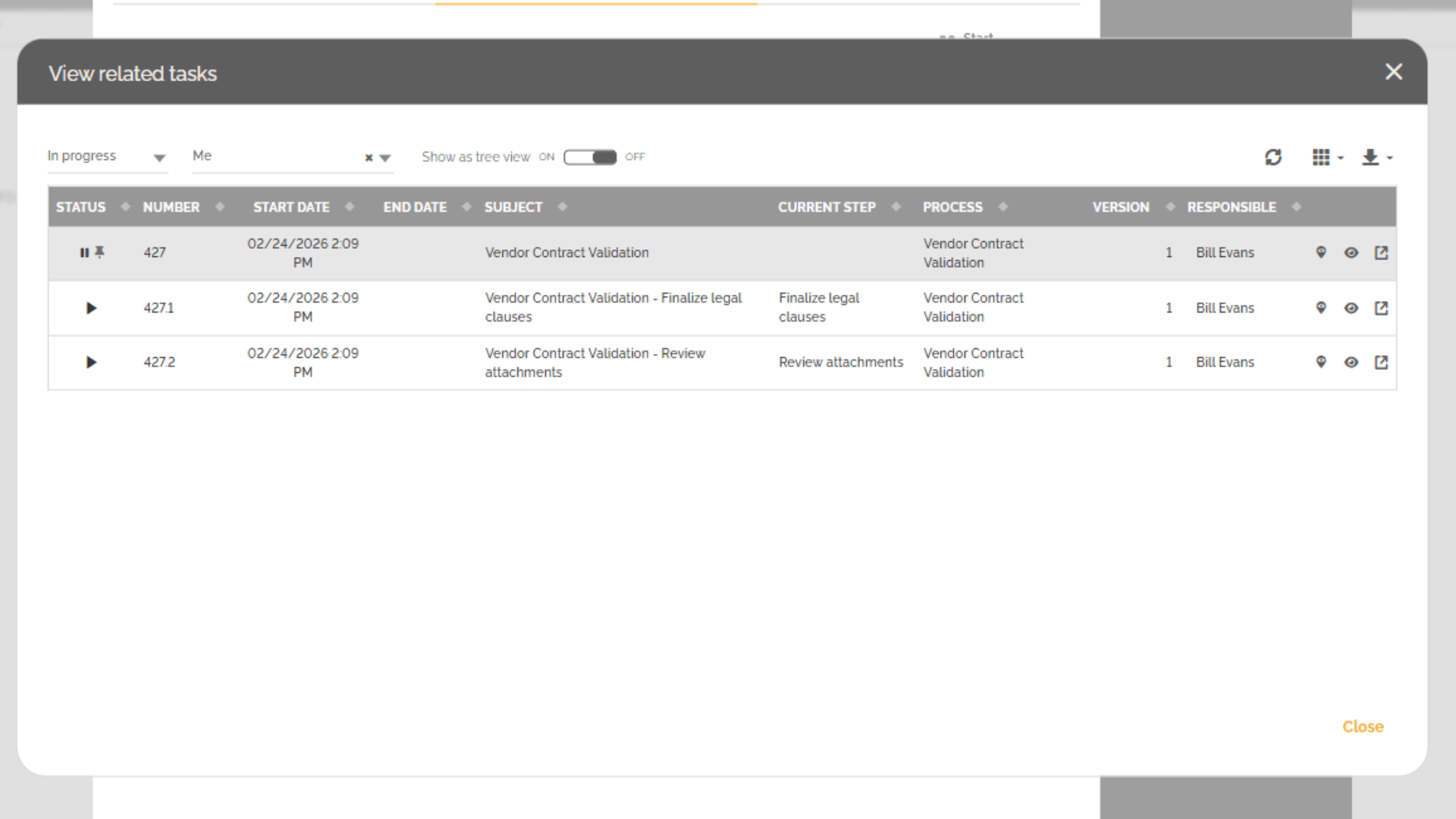
- A task list will open displaying all tasks linked to the instance
Default Filters
By default, the list of related tasks is filtered by:
- Status: In Progress
This ensures that users immediately see all tasks that are currently in progress.
3. Using Filters and Customizing the View
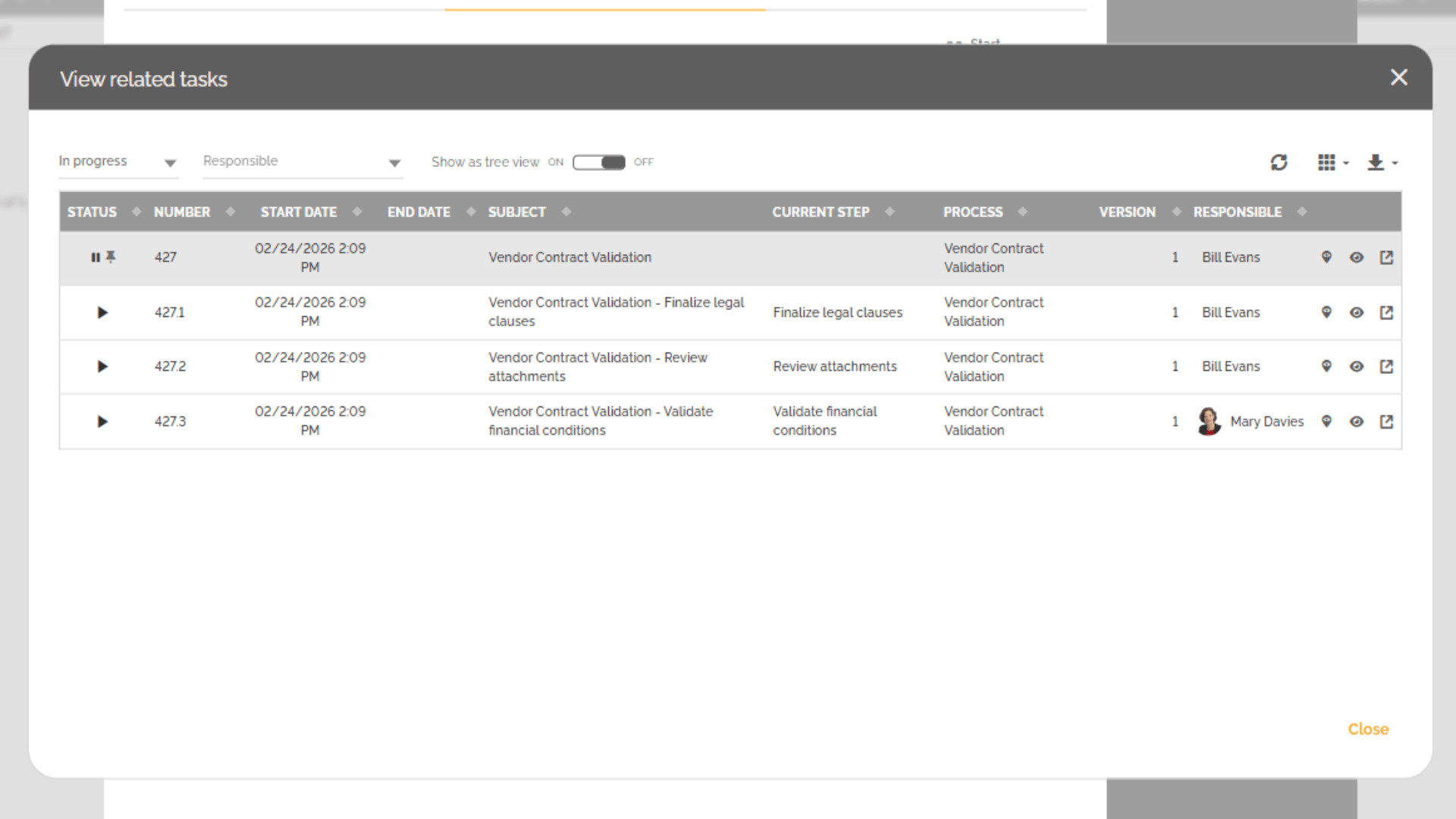
Inside the Related Tasks window, you will find several options allow you to refine the task list and display only the information needed.
Responsibility Filter
- Display only tasks assigned to you
- Remove the filter (depending on your permissions level) to view tasks assigned to all participants
Status Filter
You can filter by status, such as:
- In Progress
- Completed
- Suspended
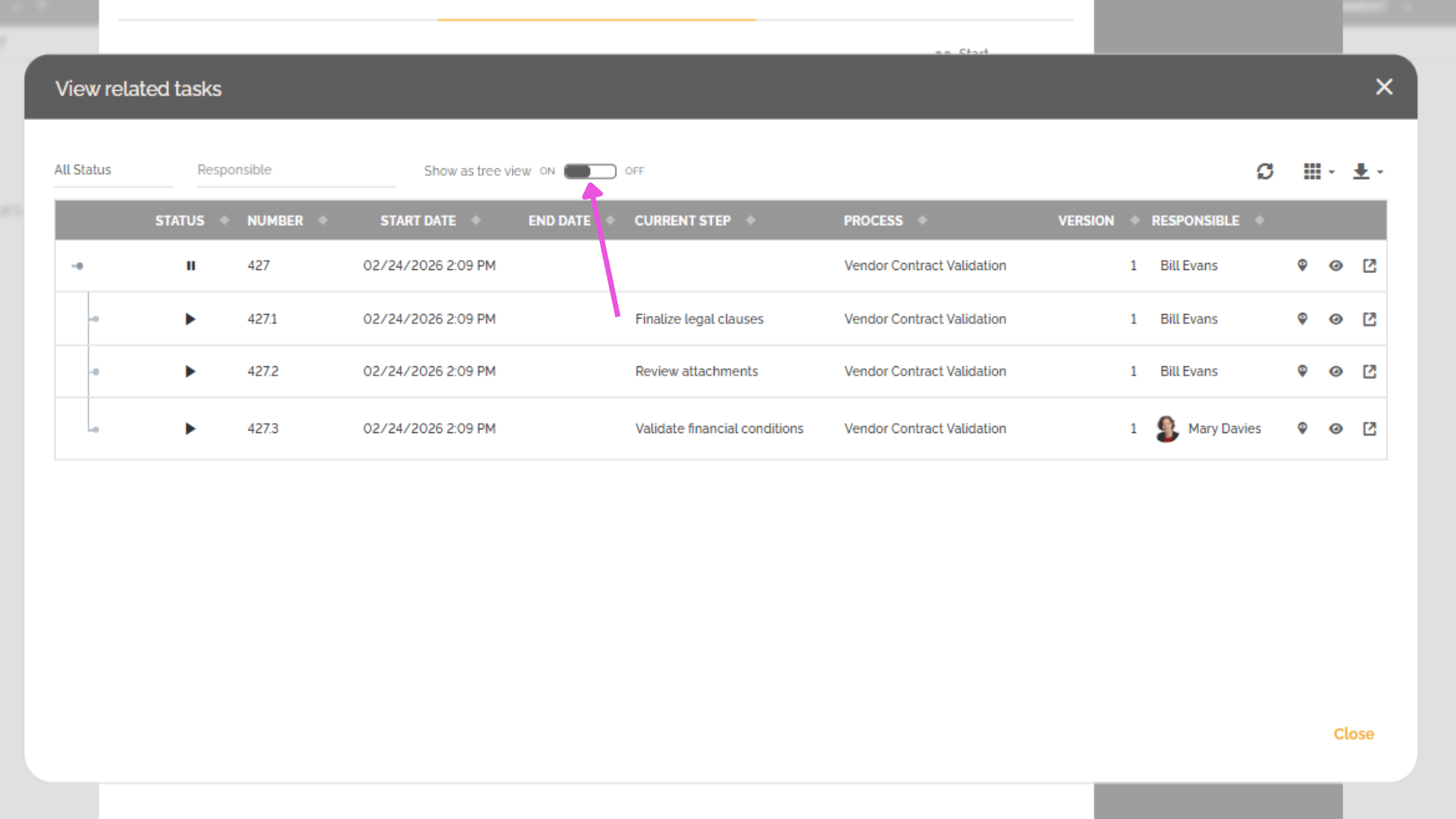
 You can also display the parent-child relationship between the different tokens by enabling the following option:
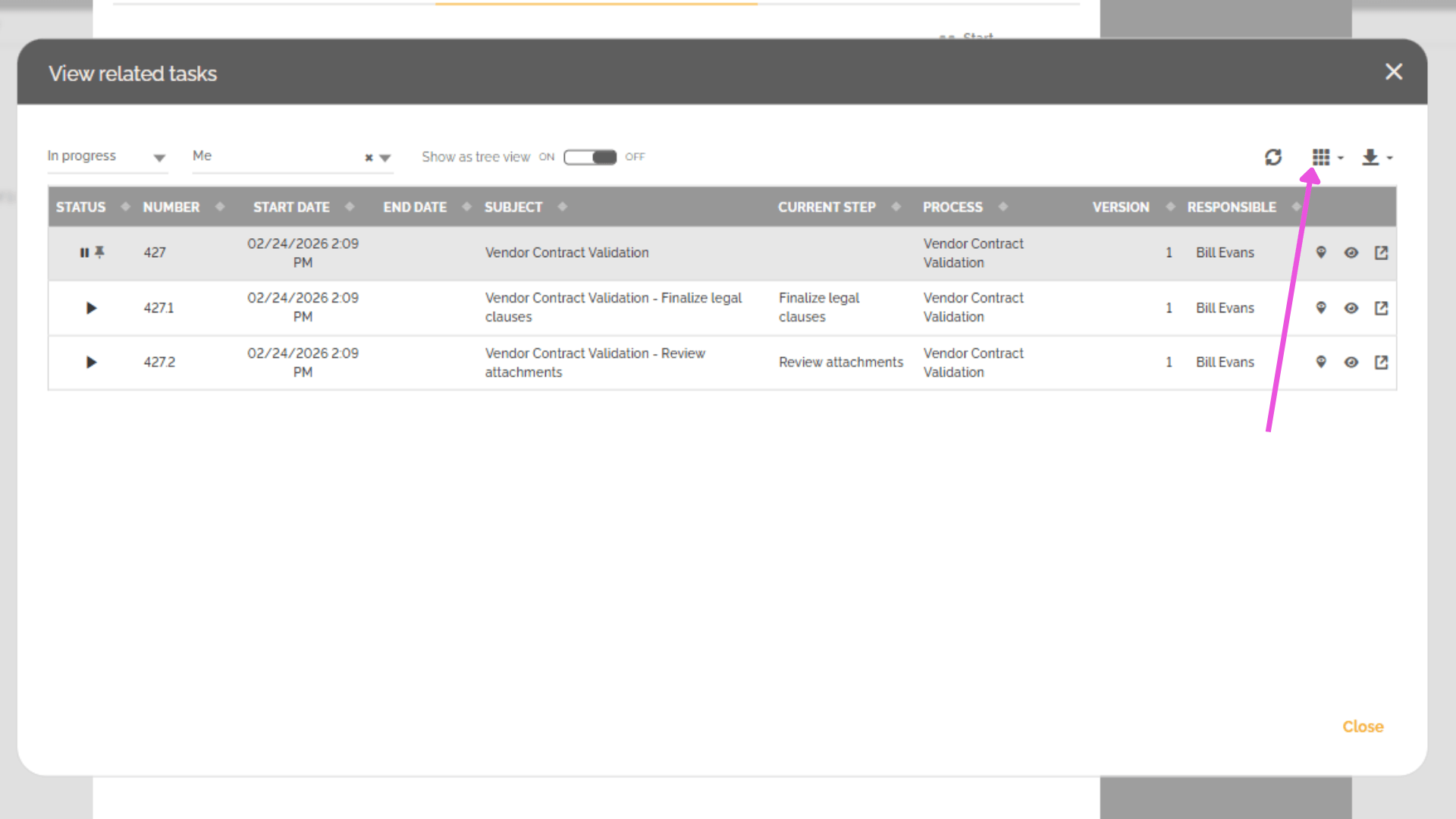
Column Customization
Additional columns can be displayed to provide more contextual information.
These options improve visibility and operational control.
4. Navigating Between Parent and Sub-Instances
HEFLO provides multiple navigation tools to help users locate tasks and move easily between parent and sub-instances.
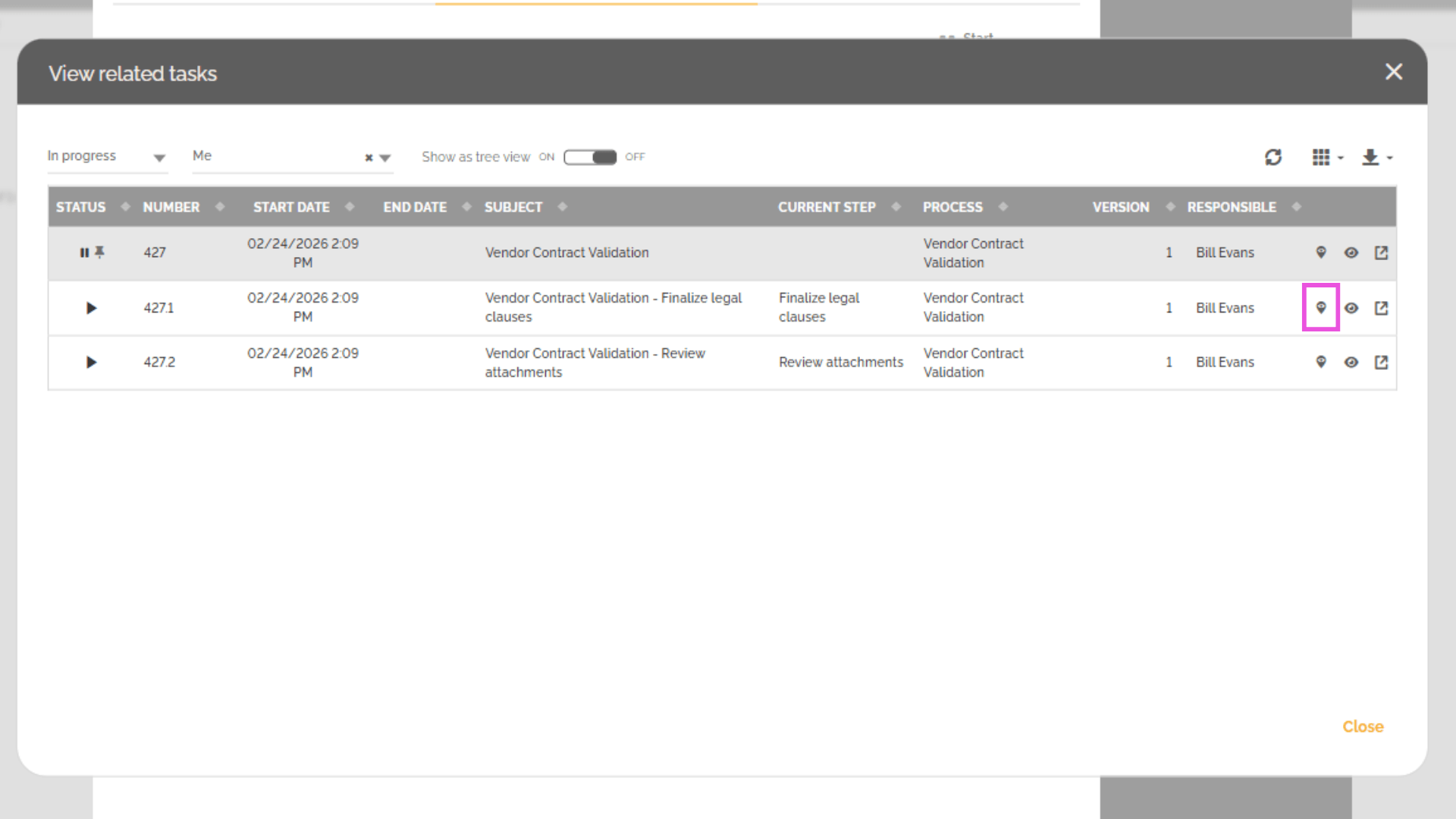
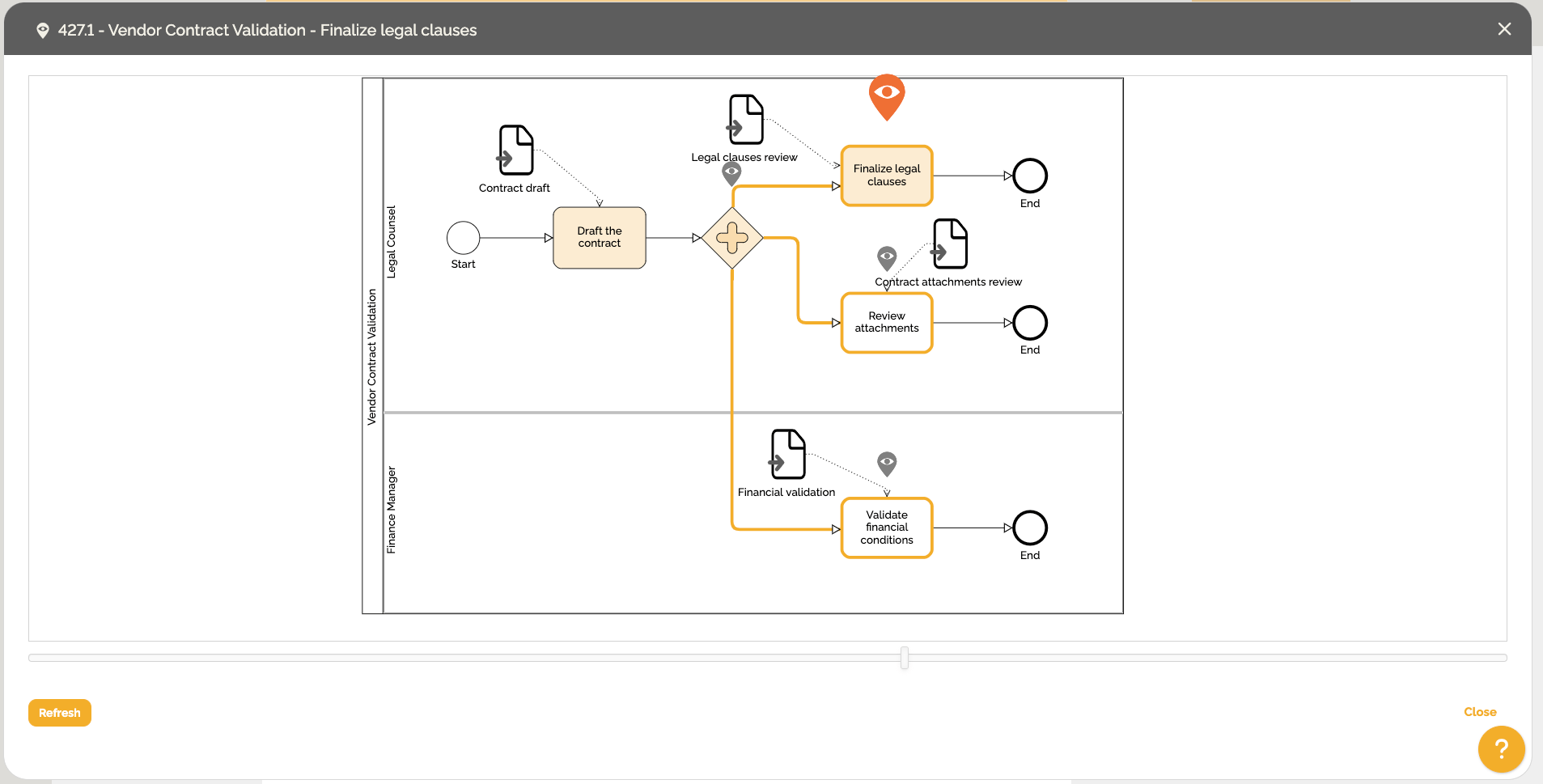
Process Map Icon
Allows you to:
- Locate the task of the selected instance within the process map
- Understand its position within the workflow
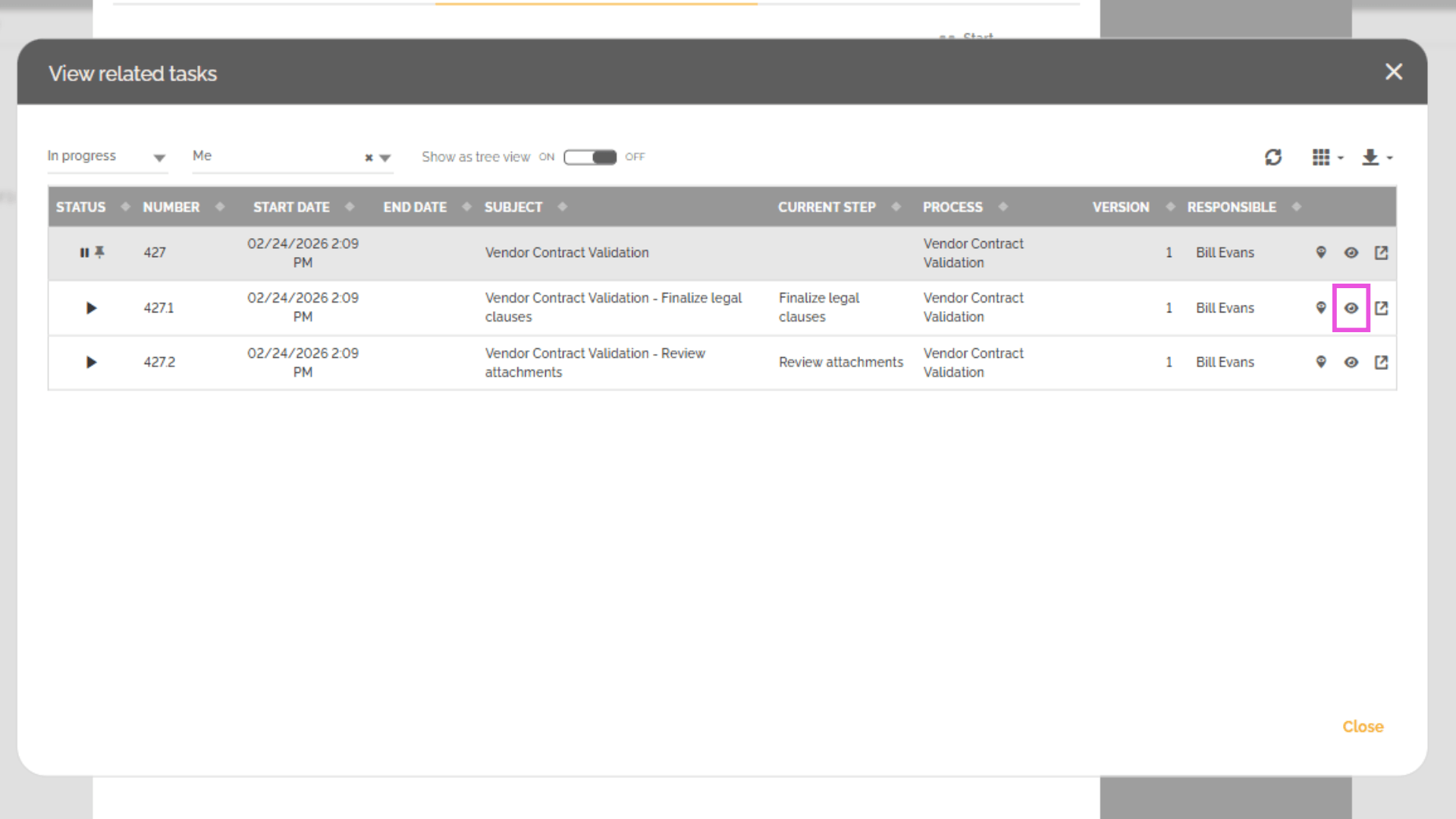
Eye Icon
Allows you to:
- Open the selected instance and display the current task information
- View it in the same tab
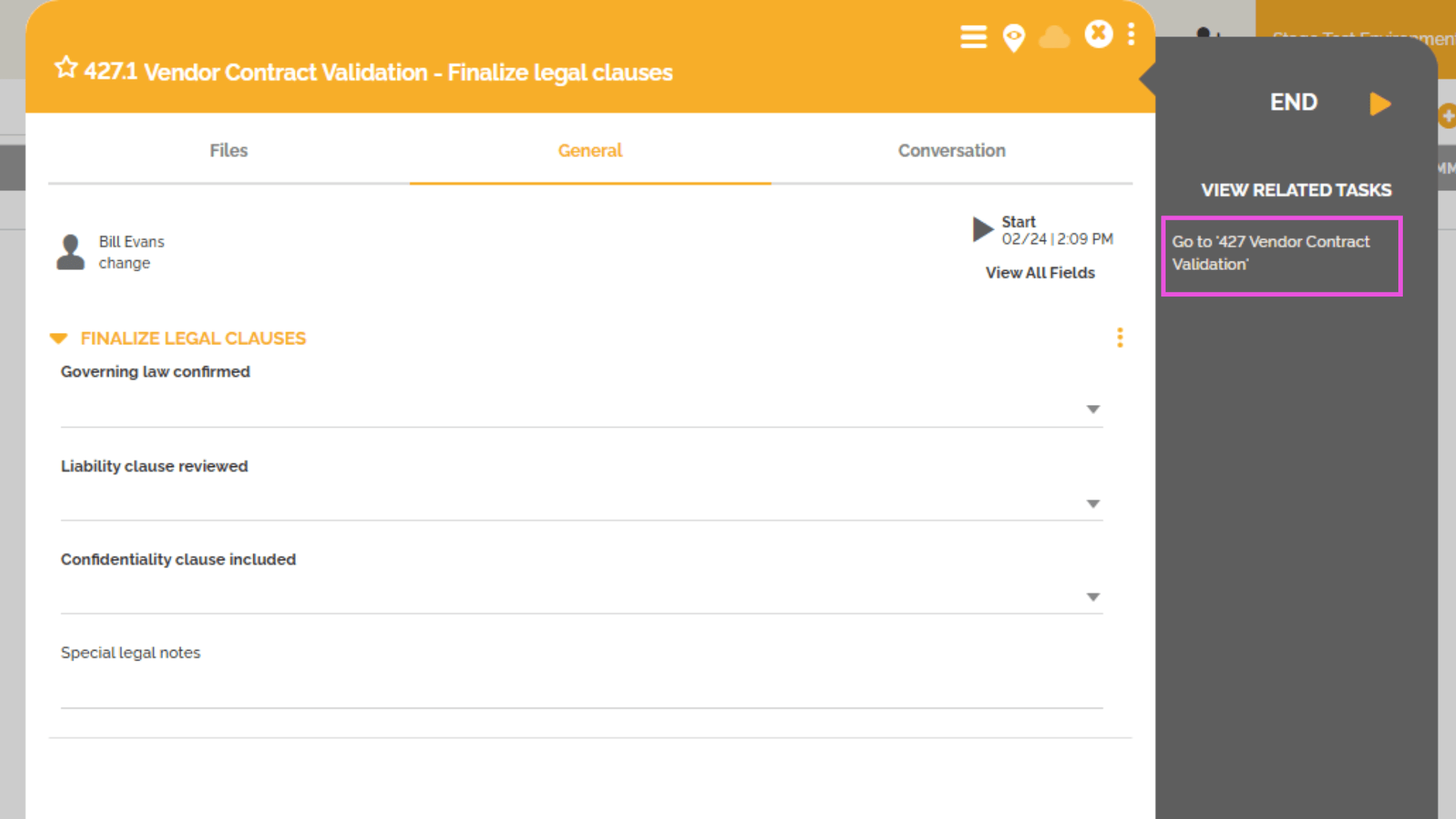
From a sub-instance, a button located below “View Related Tasks” allows you to:
- Return to the main (parent) process instance
Opening in a New Tab
You can also open a sub-instance in a new browser tab.
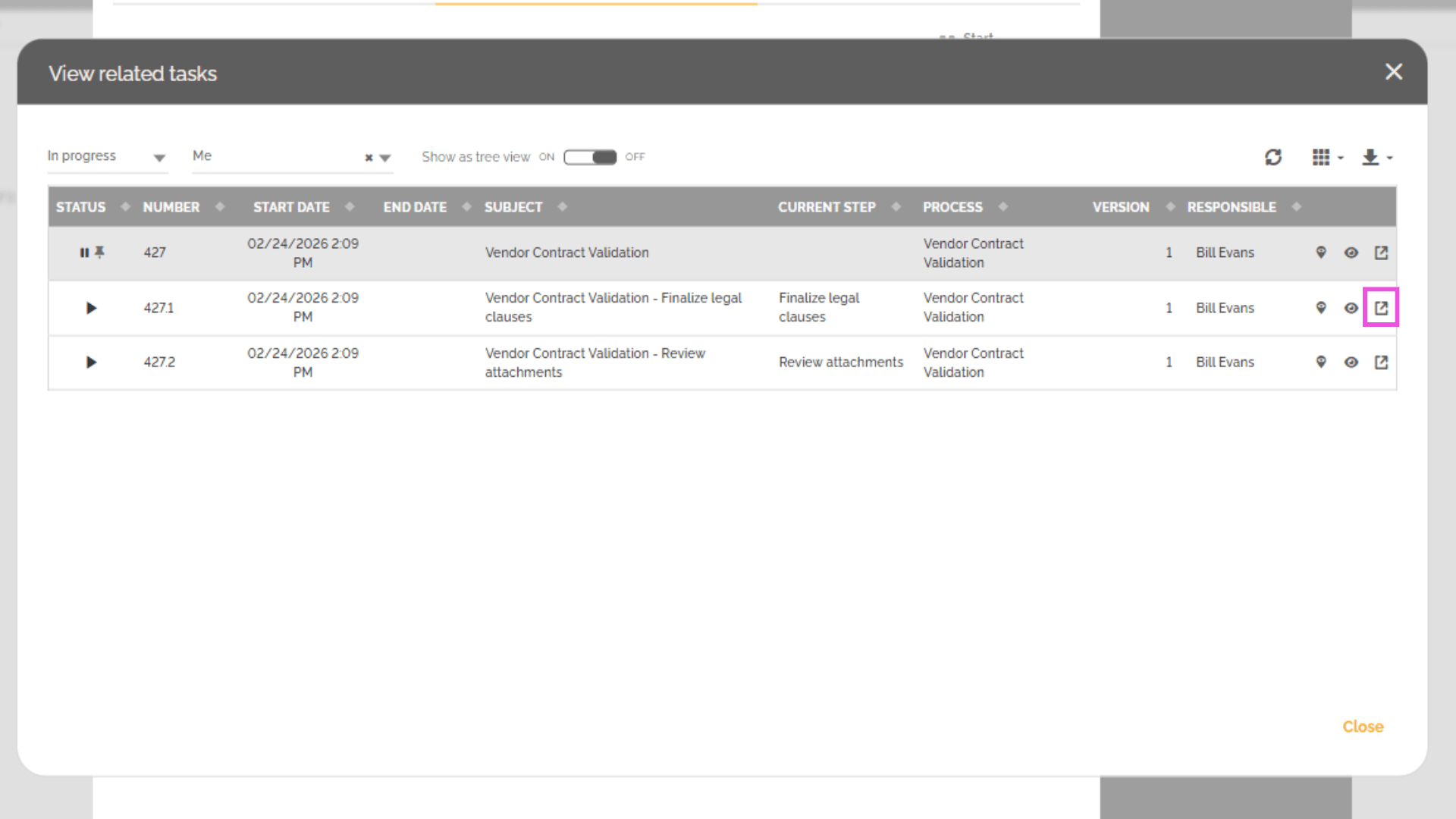
If you close the sub-token without modifying its URL, the newly opened tab will automatically close.
5. Ad Hoc Processes
For ad hoc activities, the behavior is identical:
- The sub-instance appears in “View Related Tasks”
- The default filtering logic applies
- An option to return to the parent instance is available within the sub-instance
- The visibility of instances depends on user responsibilities and permissions
This maintains a consistent user experience.
6. Call Activities
Call activities follow the same logic described in the previous section:
- You can return to the previous task
- Visibility depends on user responsibility and permissions.
7. Special Case: Process Messages
Note that Process messages do not follow the same logic, as they behave differently.
Key Differences
- They generate a new instance number for the related process
- They do not use extension numbering such as:
- .1
- .2
- .3
Instead, they create a completely separate instance.
Navigation Limitations
When opening an instance created via a process message:
- No option to return to the parent instance is present
- “View Related Tasks” only displays tokens linked to that new message instance
- Sub-tokens from other parallel branches are not visible
This behavior reflects the independent nature of message-triggered instances.
Conclusion
This article demonstrates how HEFLO provides a clear and structured way to manage sub-instances linked to a main process instance through:
- Complete task visibility
- Advanced filtering
- Smooth navigation between parent and sub-tokens
- Direct access to the process map
For process messages, the behavior differs because they create independent instances.
This functionality significantly improves visibility and control in complex workflows.