
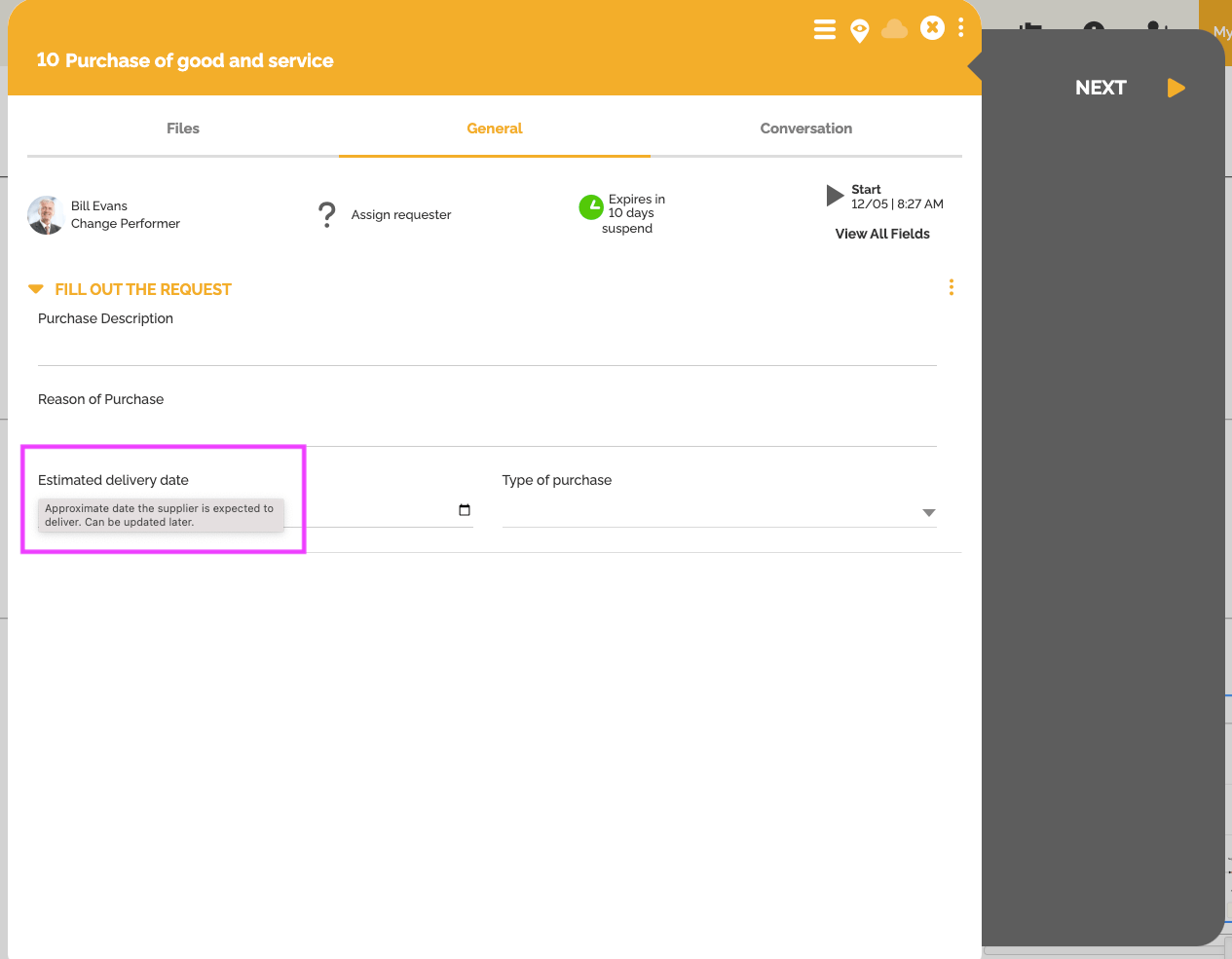
In HEFLO, it is now possible to display contextual information to users when they hover their mouse over the name of a field in a form.
This feature helps guide users during process execution by providing additional details without cluttering the interface.
This functionality is particularly useful for:
- Giving instructions or input rules;
- Explaining the expected format (e.g.: DD/MM/YYYY);
- Providing business context;
- Avoiding misunderstandings or repeated support requests.
🛠 How to configure a tooltip in a form?
- In your HEFLO process, open the form editor.
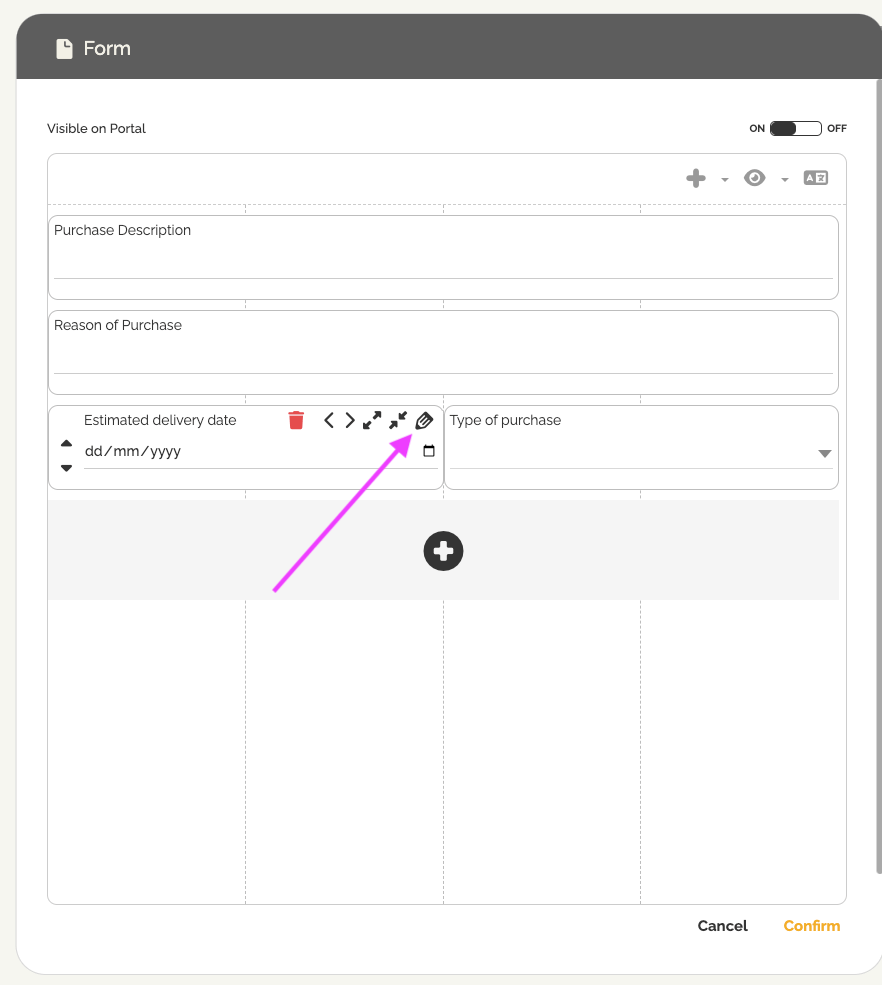
- Select the field where you want to add information.
- Click the pencil icon to edit the field.
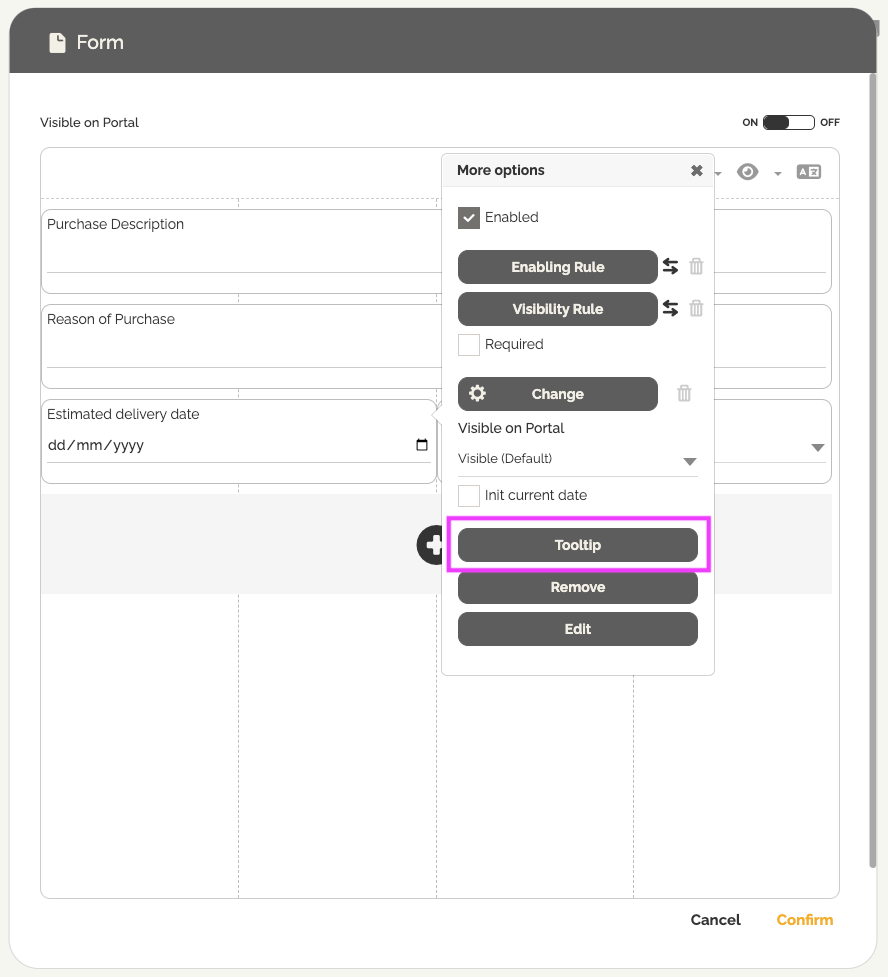
- Go to the “Tooltip” option.
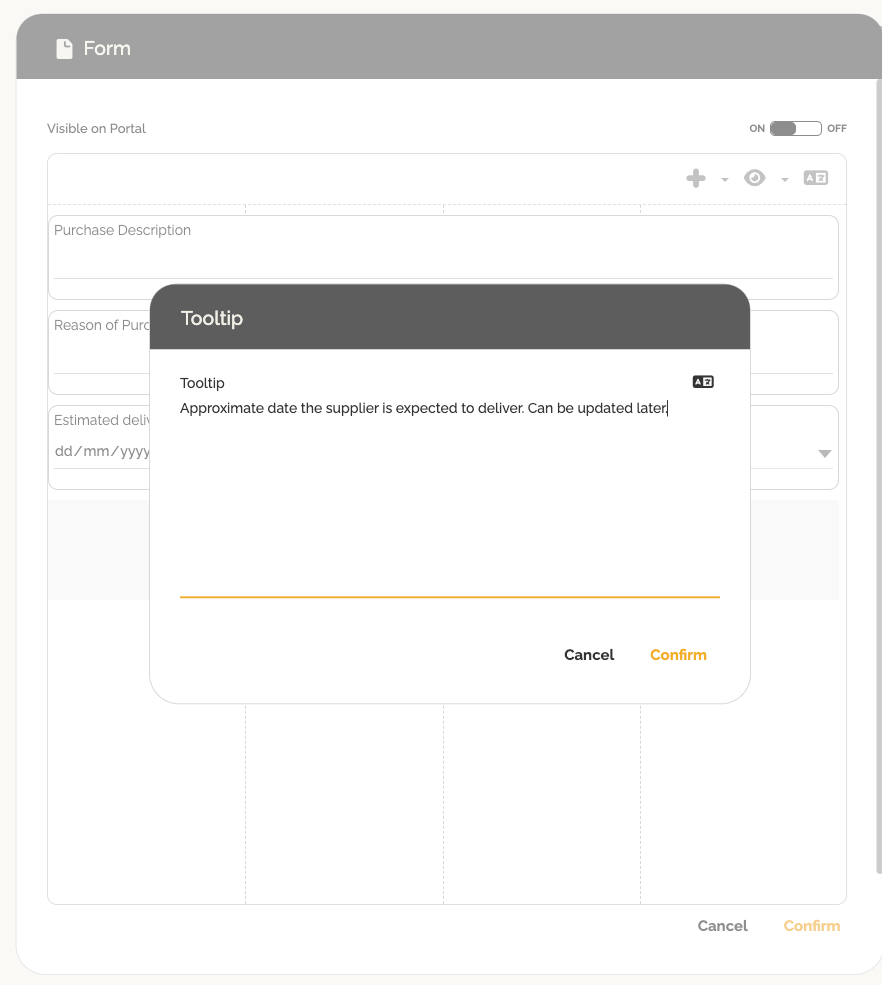
- Enter the desired informational message.
- Save to apply.
When the user executes this process task and hovers the mouse over the field name, the message will be displayed to help them correctly fill in the form.
🌍 Optional: Automatic translation of the message
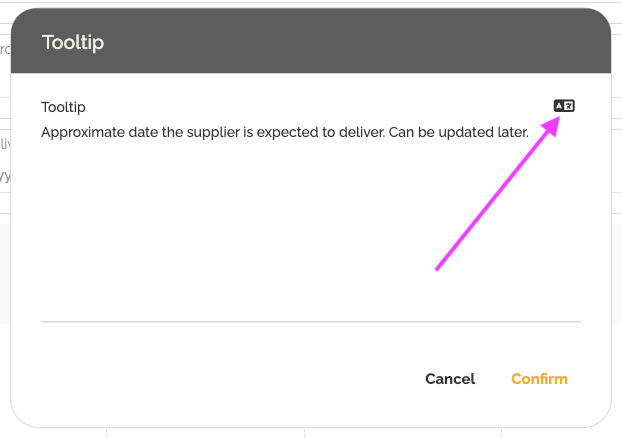
If your HEFLO environment has automatic translation enabled, you can translate this text:
- The translation option appears directly inside the message editor.
- The text adapts to the language of the connected user.
➡ To learn more about translating processes or form fields, please refer to: Automatically Translate Your Processes and Associated Fields.